This online utility adds a gradual fade-out effect to a GIF file. You can set a specific duration and choose a background color, and the GIF animation will slowly fade over that time and blend into the background. You can apply the fade-out either only to the existing frames of an animated GIF or smooth the transition by adding additional frames. You can also apply the fade-out effect to single-frame GIFs. Created by GIF experts from team Browserling.
This online utility adds a gradual fade-out effect to a GIF file. You can set a specific duration and choose a background color, and the GIF animation will slowly fade over that time and blend into the background. You can apply the fade-out either only to the existing frames of an animated GIF or smooth the transition by adding additional frames. You can also apply the fade-out effect to single-frame GIFs. Created by GIF experts from team Browserling.

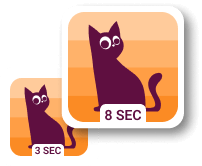
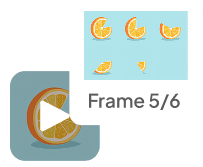
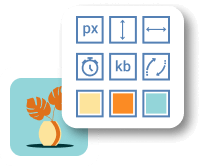
This browser-based program applies a gradual fade-out effect to GIF animations. The fade-out keeps the GIF visible at the start and slowly turns it into a solid background color at the end. For example, the GIF can play clearly for the first 3 seconds, then fade out over 2 seconds, ending as a solid black frame. You can set the fade-out duration in the options. It can be an integer (e.g., 2 or 5 seconds) or a decimal (e.g., 3.5 or 4.06 seconds). You can also choose the fade-out color. It must be an opaque color (GIF files do not support partial transparency), such as white, black, or any brand color that matches your animation. However, if your GIF contains fully transparent areas that you want to preserve, you can activate the transparency option. It keeps fully transparent pixels transparent in the output GIF, applying the specified background only to the semi-transparent pixels that are created during the fading of the visible animation areas. If you select "Fade Original Frames", the program applies the fade-out effect directly to the existing frames. This keeps the original frame count and GIF duration unchanged. If the fade-out duration is shorter than the GIF, the beginning of the GIF plays unchanged, and the fade-out is applied at the end. If the fade-out duration is equal to or longer than the GIF, the fade-out adjusts to match the full animation length. If you select "Create Extra Fade Frames", the program creates new intermediate frames for a smoother transition. If the fade-out duration is shorter than the GIF, it applies only to the ending part. If the fade-out duration is longer, the tool generates extra frames and stretches the fade-out to the chosen duration. For static GIFs (single-frame images), the tool converts the image into a GIF animation with the fade-out effect applied for the specified duration. In the options, you can check the number of input and output frames, compare the durations of both GIFs, and preview the current frames with their delay and size. To create a fade-in effect instead of a fade-out, use our Add Fade-in Effect to GIF tool. Gifabulous!
This browser-based program applies a gradual fade-out effect to GIF animations. The fade-out keeps the GIF visible at the start and slowly turns it into a solid background color at the end. For example, the GIF can play clearly for the first 3 seconds, then fade out over 2 seconds, ending as a solid black frame. You can set the fade-out duration in the options. It can be an integer (e.g., 2 or 5 seconds) or a decimal (e.g., 3.5 or 4.06 seconds). You can also choose the fade-out color. It must be an opaque color (GIF files do not support partial transparency), such as white, black, or any brand color that matches your animation. However, if your GIF contains fully transparent areas that you want to preserve, you can activate the transparency option. It keeps fully transparent pixels transparent in the output GIF, applying the specified background only to the semi-transparent pixels that are created during the fading of the visible animation areas. If you select "Fade Original Frames", the program applies the fade-out effect directly to the existing frames. This keeps the original frame count and GIF duration unchanged. If the fade-out duration is shorter than the GIF, the beginning of the GIF plays unchanged, and the fade-out is applied at the end. If the fade-out duration is equal to or longer than the GIF, the fade-out adjusts to match the full animation length. If you select "Create Extra Fade Frames", the program creates new intermediate frames for a smoother transition. If the fade-out duration is shorter than the GIF, it applies only to the ending part. If the fade-out duration is longer, the tool generates extra frames and stretches the fade-out to the chosen duration. For static GIFs (single-frame images), the tool converts the image into a GIF animation with the fade-out effect applied for the specified duration. In the options, you can check the number of input and output frames, compare the durations of both GIFs, and preview the current frames with their delay and size. To create a fade-in effect instead of a fade-out, use our Add Fade-in Effect to GIF tool. Gifabulous!
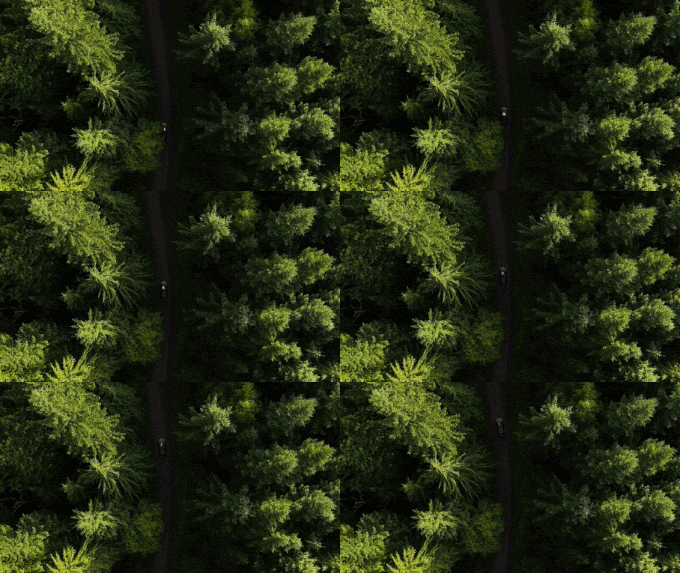
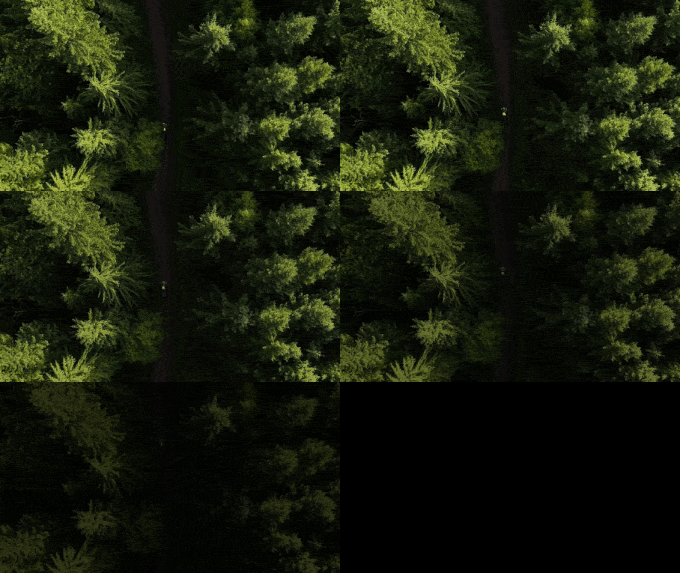
In this example, we add a fade-out effect to the existing frames of an aerial forest path GIF. The full animation is 2.25 seconds long, and we apply the fade only to its final 1.5 seconds, so the beginning keeps its original look. During the ending, the forest path gradually darkens until the final frames turn into solid black. This classic fade to black technique is often used in movies and video clips to close a scene smoothly. (Source: Pexels.)
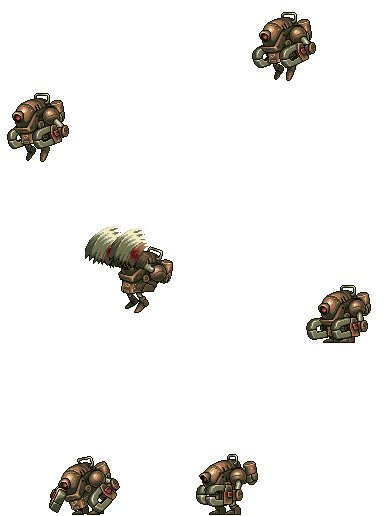
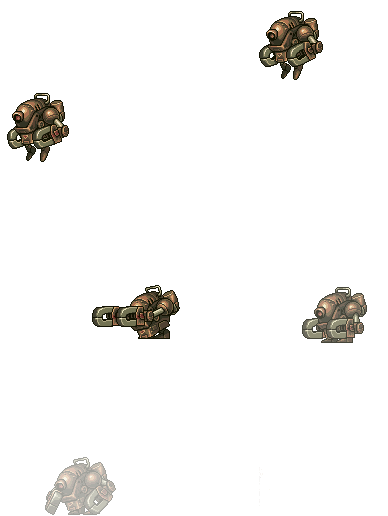
In this example, we edit a Claw Unit attack animation from Metal Slug Attack. We keep the attack itself clearly visible, then add the fade-out when the machine returns to its starting position. The GIF fades into a white background over 2.5 seconds, visually signaling that the attack sequence has finished. We use the extra-frame method, which creates a smoother fade-out transition for the final movement. (Source: SNK.)
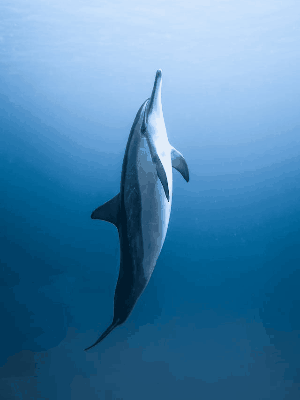
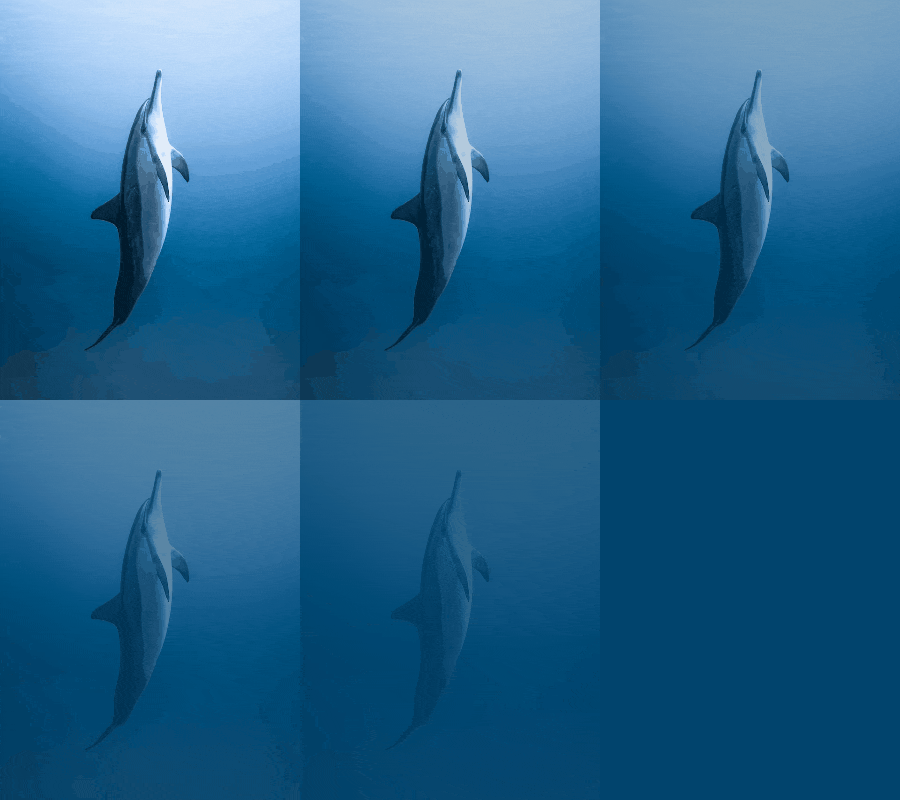
In this example, we start with a static GIF of a dolphin swimming in blue ocean water. We set the fade-out background to a deep blue color that matches the tone of the surrounding water (#01446d). As a result, the single-frame GIF becomes a 1.8-second fade-out animation where the dolphin slowly disappears, and the whole canvas turns into a solid ocean-colored screen. (Source: Pexels.)
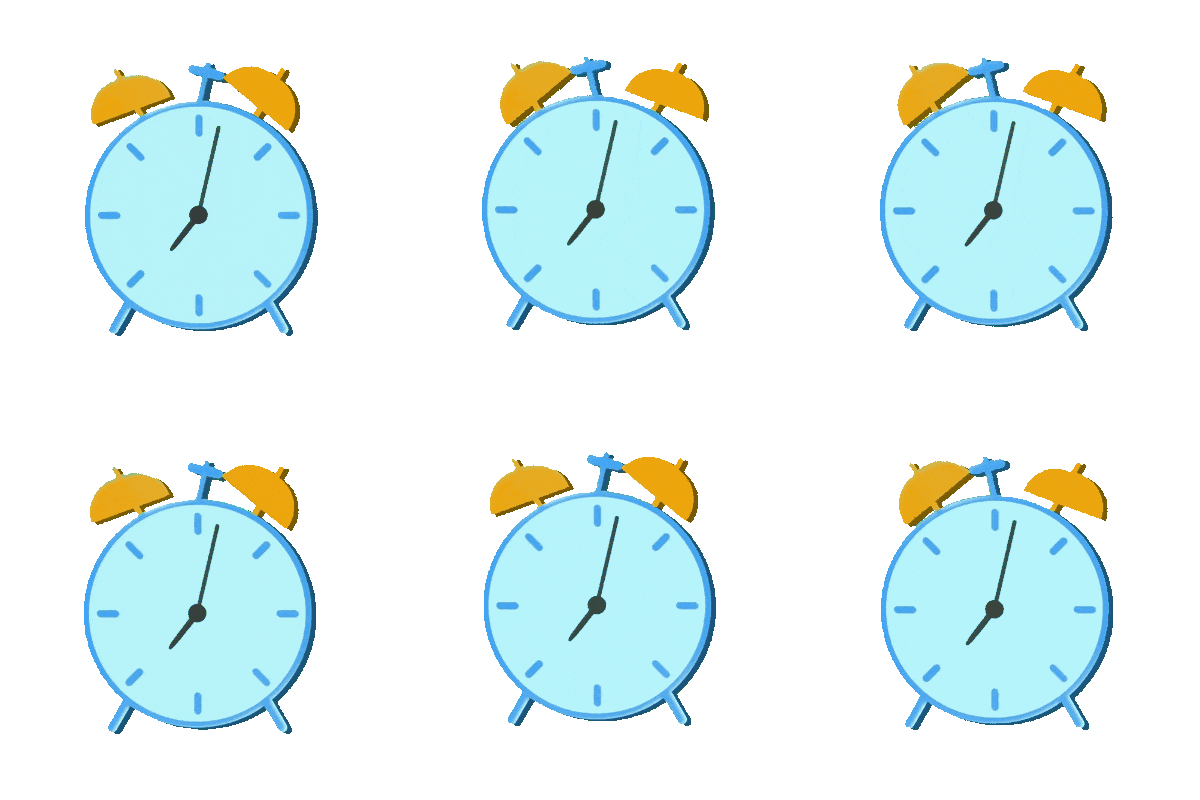
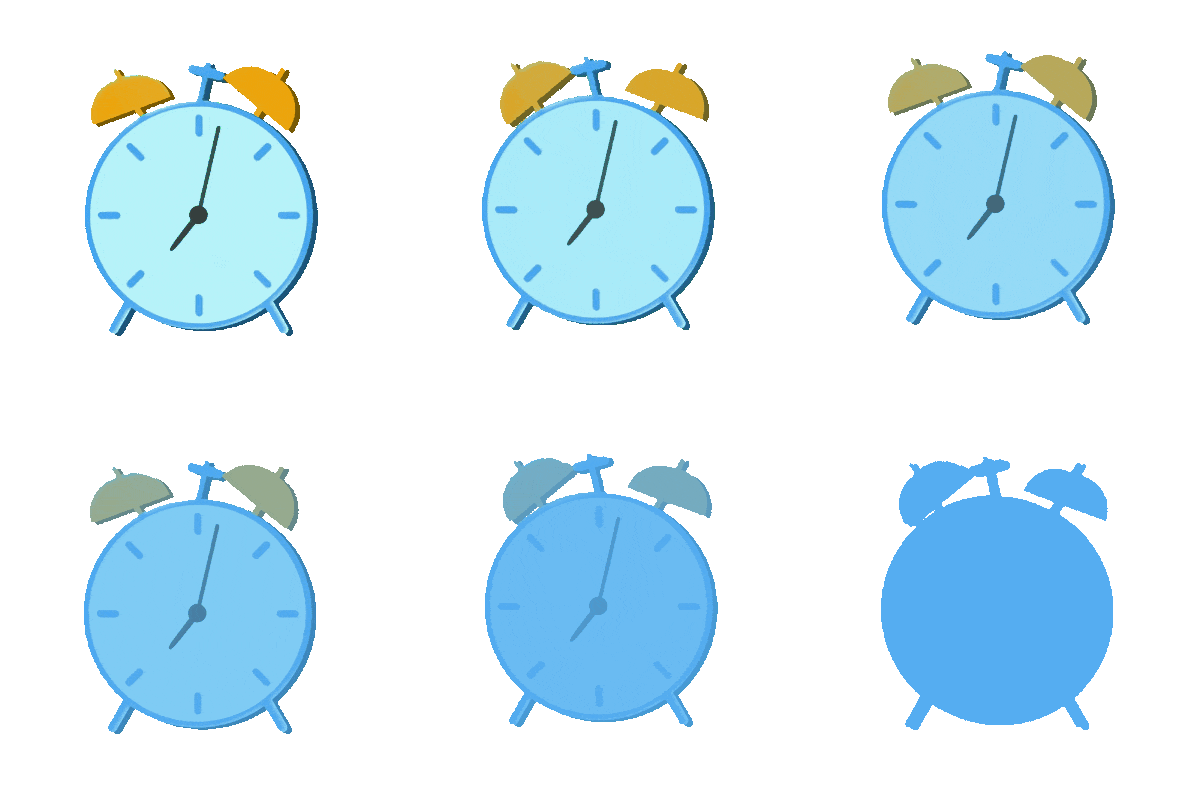
In this example, we make a ringing alarm clock animation fade away into a bright sky-blue background. We use the smooth-frame method to generate extra fade-out frames, so the final 1.2-second transition looks softer than a direct frame-by-frame fade. Because the original GIF has transparent regions, we enable the transparency preservation option. This way, the fade-out applies only to the visible clock, while clear areas remain transparent. (Source: Vecteezy.com.)
Create animated GIFs in your browser.
Change the order of frames in a GIF animation.
Insert one or more frames in a GIF animation.
Decrease the size of a GIF.
Add an audio track to a GIF.
Cross-fade a GIF frame by frame.
Cross-fade two GIF animations.
Smoothly transform one GIF into another GIF.
Change the delay between all GIF frames to the same value.
Change the framerate of a GIF.
Increase the width and height of a GIF.
Decrease the width and height of a GIF.
Create a chess game animation from a PGN file.
Create a go game animation from a SGF file.
Create a draughts/checkers game animation from a PDN file.
Generate a GIF animation of winning a Solitaire game.
Create a GIF animation of Game of Life.
Base64-encode a GIF.
Base64-decode a GIF.
Base58-encode a GIF.
Base58-decode a GIF.
Convert a sequential GIF to progressive GIF.
Convert a progressive GIF to a sequential GIF.
Convert an animated PNG to an animated GIF.
Convert an animated GIF to an animated PNG.
Convert an animated PNG to an animated GIF.
Convert a GIF animation to an AV1 animation (AVIF).
Convert an AV1 animation (AVIF) to a GIF animation.
Convert a GIF animation to a HEIF animation.
Convert a HEIF animation to a GIF animation.
Export a GIF animation to a BPG animation.
Convert an animated BPG to an animated GIF.
Convert a GIF animation to an AVI video.
Convert an AVI video to a GIF animation.
Convert a GIF animation to a WMV video.
Convert a WMV video to a GIF animation.
Convert a GIF animation to an MP4 video.
Convert an MP4 video to a GIF animation.
Convert a GIF animation to an MKV video.
Convert an MKV video to a GIF animation.
Convert a GIF animation to a MOV video.
Convert a MOV video to a GIF animation.
Convert a GIF animation to GIF video (GIFV).
Convert a GIF video (GIFV) to a GIF animation.
Create a Data URI from a GIF animation.
Reconstruct a GIF from a Data URI.
Draw one or more GIF frames as ASCII art.
Create an animation from multiple ASCII art drawings.
Draw one or more GIF frames as ANSI art.
Create an animation from multiple ANSI art drawings.
Draw one or more GIF frames using Unicode glyphs.
Create a GIF from multiple Unicode drawings.
Draw one or more GIF frames using Braille characters.
Create a GIF animation from Braille characters.
Replace one color in a GIF with another.
Convert all colors in a GIF to just two black and white.
Find the color palette used in a GIF.
Find the color index used in a GIF.
Randomly change the color indexes of a GIF.
Create a GIF with more than 256 colors.
Convert a 256-color GIF to a 2-color GIF.
Convert a non-dithered GIF to a dithered GIF.
Merge dithered pixels and create a non-dithered GIF.
Change the delay interval between individual GIF frames.
Split a GIF into two or more GIFs.
Join two or more GIFs into a single GIF.
Shift GIF frames to the right or to the left.
Hide the selected area in a GIF by drawing a block over it.
Extract a part (a range of frames) from a GIF.
Create multiple GIF copies side-by-side.
Create multiple copies of individual GIF frames.
Skew a GIF animation by an angle.
Reverse a skew in a GIF animation.
Create a pixel whirl of any radius in a GIF.
Create a GIF that animates white noise.
Make a GIF animation go so slow that it appears almost static.
Remove a watermark from a GIF animation.
Extract all GIF frames in a folder and zip it up.
Add a hidden comment in GIF's metainfo section.
Clear all metainfo from a GIF.
Animate multiple GIFs at the same time side-by-side.
Add an animation effect to a message.
Layer two GIFs and put one GIF on top of another GIF.
Overlay an animated GIF on any image or photo.
Overlay any image or photo on an animated GIF.
Quickly change the playback length of a GIF.
Convert any image to a GIF that emulates slow Internet speed.
Create a GIF animation of a loading spinner.
Let Zalgo destroy a GIF animation.
Subscribe to our updates. We'll let you know when we release new tools and features, and when we organize online workshops.
Enter your email here
We're Browserling — a friendly and fun cross-browser testing company powered by alien technology. At Browserling we love to make peoples' lives easier, so we created this collection of online GIF tools. Our tools are enjoyed by millions of casual users every month as our easy-to-use user interface doesn't require advanced computer skills. Behind the scenes, our GIF tools are actually powered by our web developer tools that we created over the last couple of years. Check them out!